
Claude Code (for normal people)
It's f*cking easy. I'm not even a developer.

6 weeks ago, I co-wrote a newsletter about Claude Code.
I called it “Beginner to Advanced”.
I was the beginner…
Six weeks later, I am still not the advanced one. But Claude Code now runs about 80% of my content business.

Claude Code is genuinely easy. The CLI (Command Line Interface) is just another text box. You type what you want. Claude does it. That is how it works.
The fear is the only thing in your way.
Below are the 6 features that took me from terrified to fluent.
You will finish this email going “oh, I can do that too”.
If you are new here, welcome. If you have been reading for a while, thank you. Your subscription is what makes issues like this possible.
These are the 6 features to learn:
I recorded the YouTube version of this newsletter, walking through every feature with live demos inside Claude Code.
Honestly? If you would rather watch than read, go straight to that. The video shows the workflows in action, which is hard to convey in text.
1. Setup
First decision. How do you want to run it?
There are 4 ways. They all do the same job, just with different shoes on.
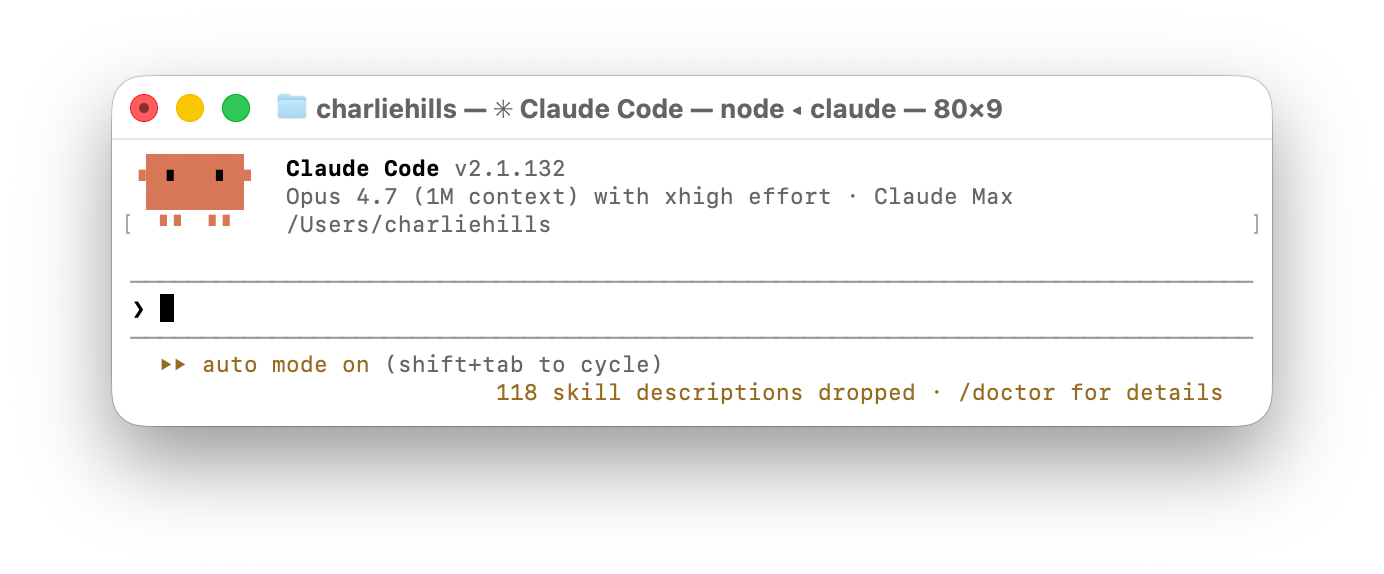
Terminal (CLI)
This is the fastest and most full-featured. I personally recommend the terminal, but it’s the steepest learning curve at first.
To install: open Terminal on your Mac (it is built in, search “Terminal” in Spotlight). Windows wants WSL or PowerShell. Then run:
curl -fsSL https://claude.ai/install.sh | bash
When that finishes, type “claude”. You are in.
Desktop app
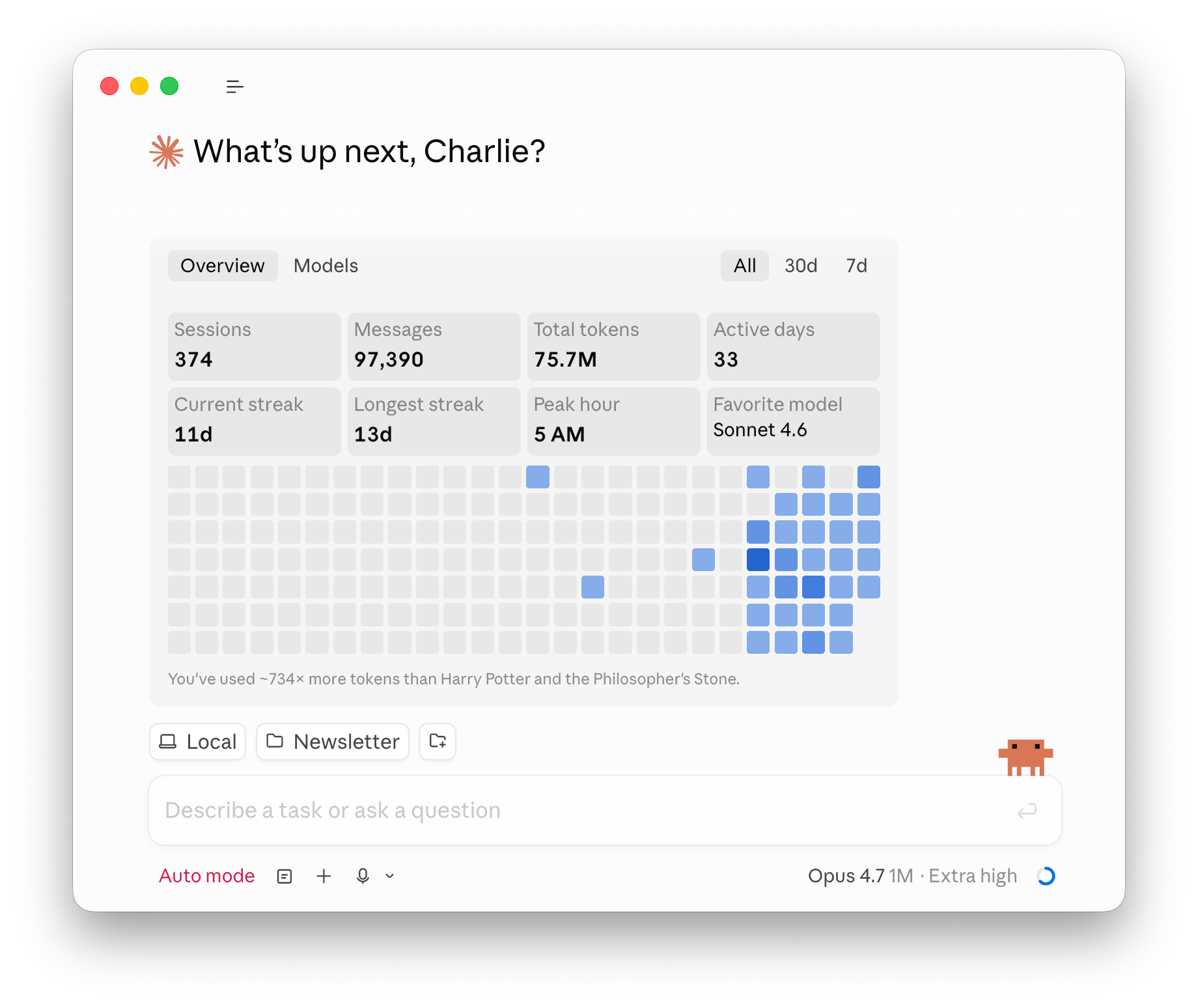
Native Mac or Windows app with a clean visual interface (no terminal anxiety).
The easiest place to start.
To install: go to claude.ai, download the app, double click, sign in. Done.
VS Code extension
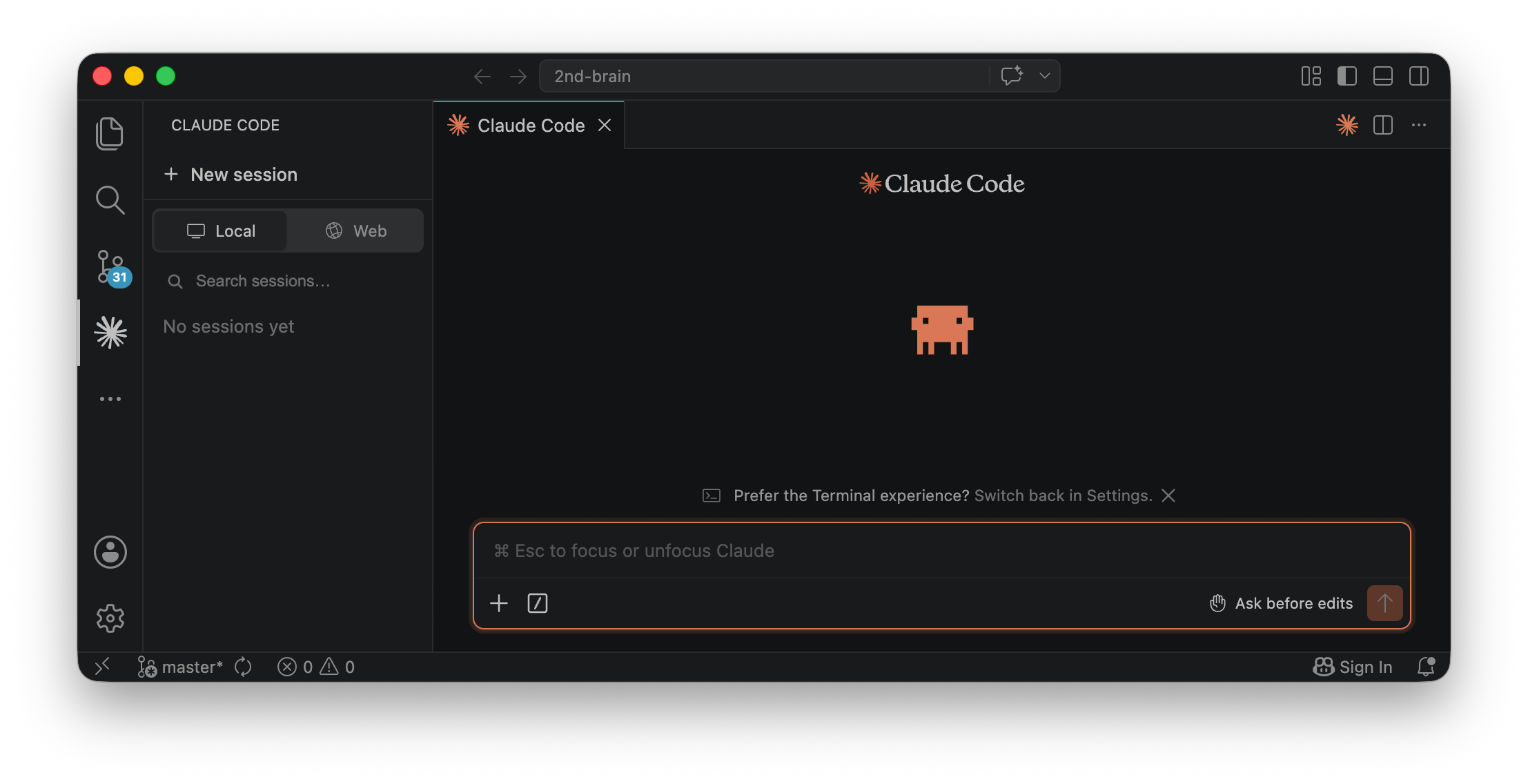
Same engine, but inside your code editor. You see Claude editing files in real time alongside your own work, and you approve each change before it sticks.
To install: install the terminal version first using the line above. Then add the “Claude Code for VS Code” extension by Anthropic from the marketplace. A Spark icon appears in the sidebar. Click it.
Web app at claude.ai/code
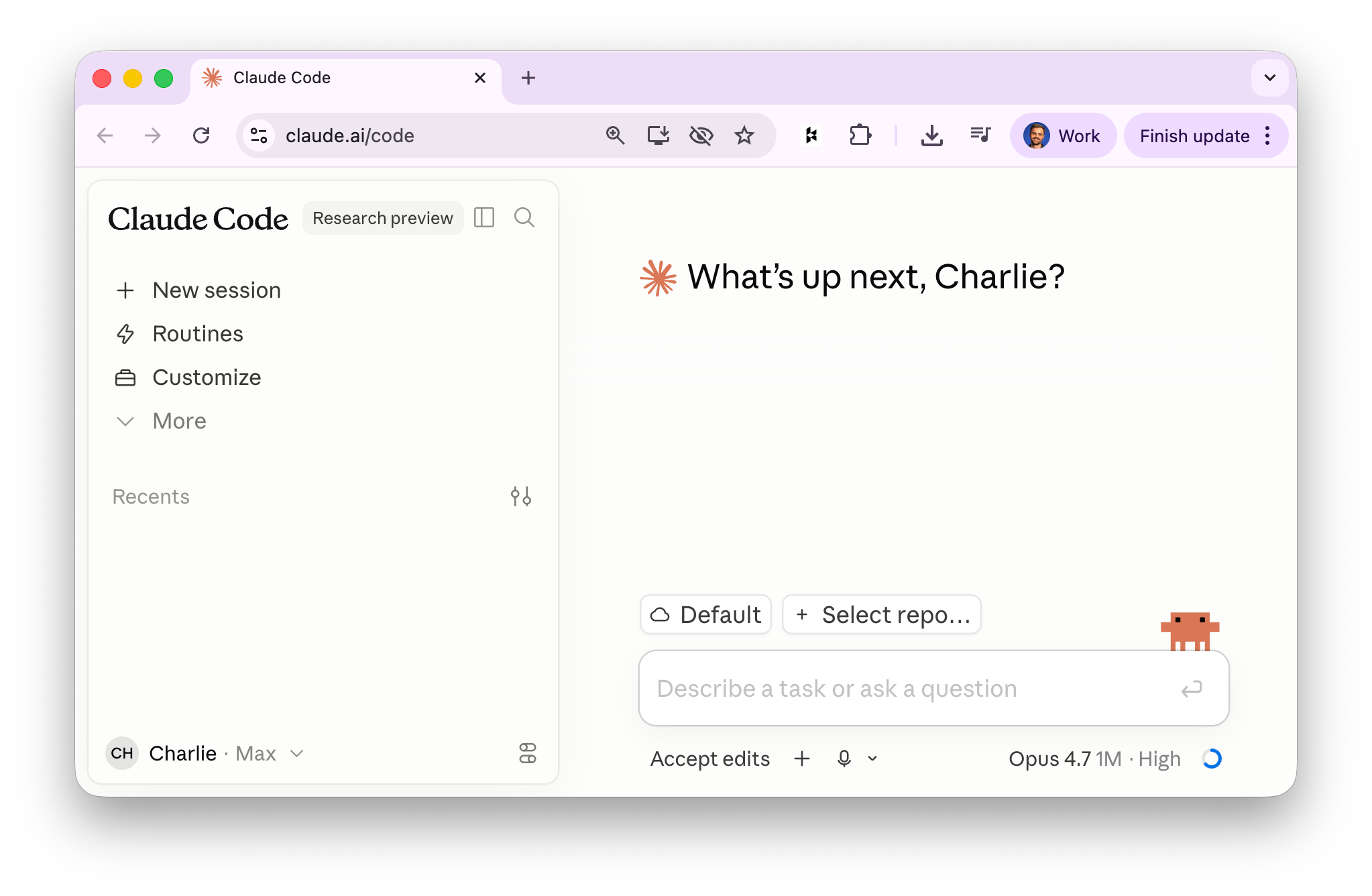
This runs in your browser, so no installation is needed. Probably the easiest way to try without committing.
I use the terminal because I learned it that way. If I started today I would honestly use the desktop app.
Okay, now onto the secret sauce.
2. CLAUDE.md
Claude Code runs on plain text files that end in .md. You do not write code. You write words. The most important file is called CLAUDE.md.
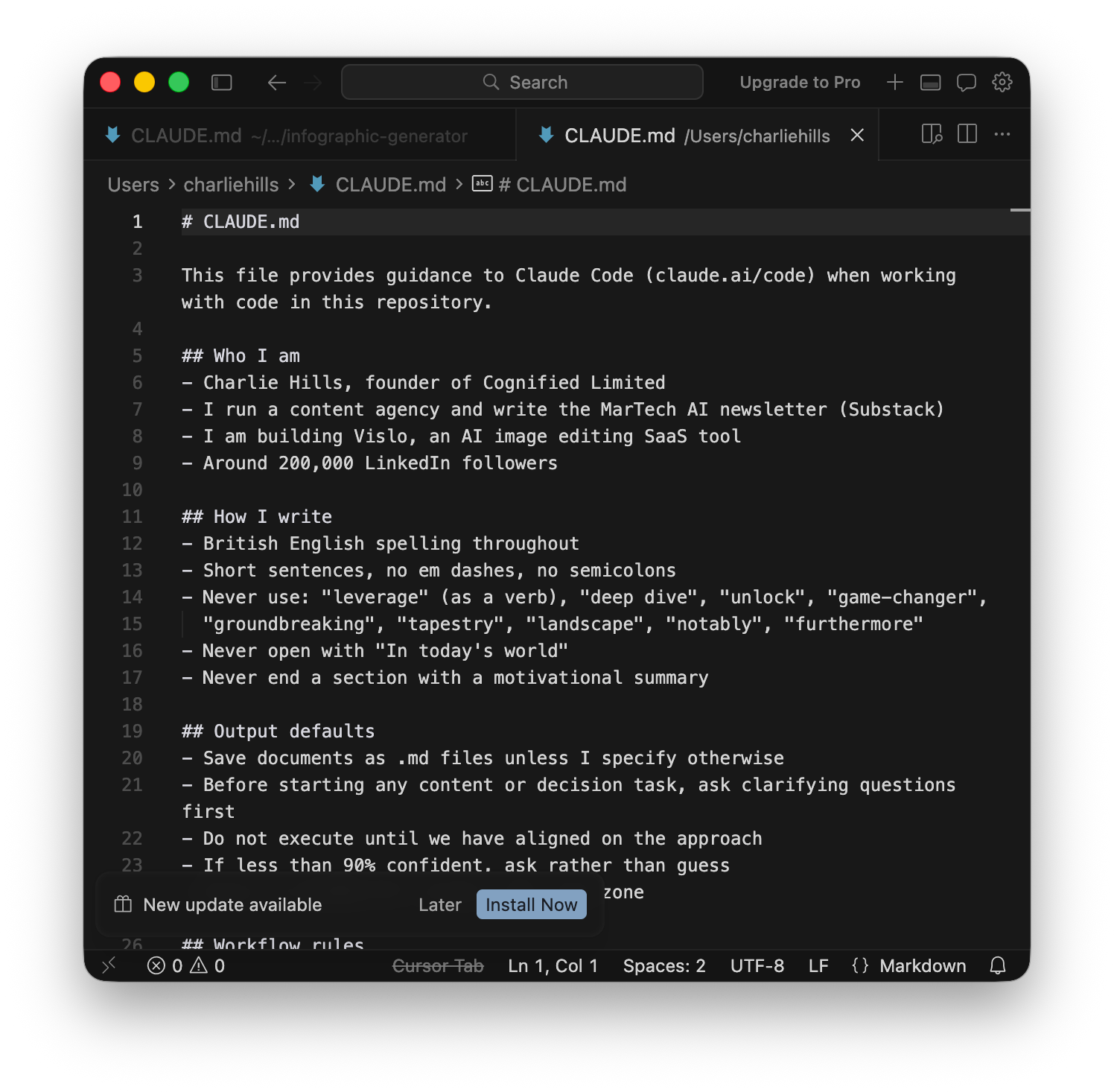
It sits in your project folder. Claude reads it before every reply. Mine tells Claude who I am, how I write, what to never do, and how to handle every recurring task in my content business.
If you never write one. Claude has no idea who you are.
The build is simple. Create the file. Start writing. Then tell Claude:
“When you figure out a recurring pattern in our work, update CLAUDE.md so we do not have to redo this every session.”
It builds itself as you work.
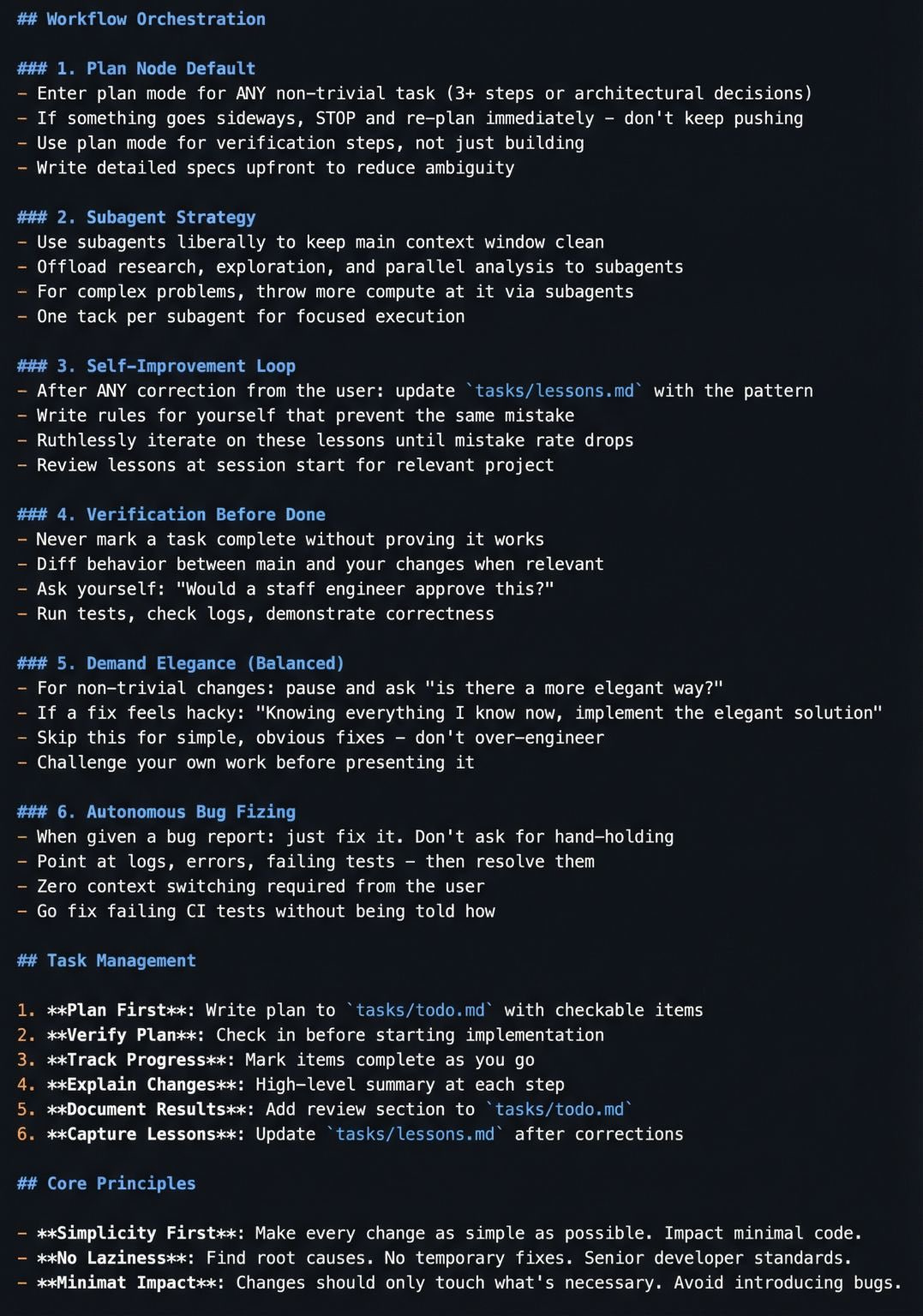
If you want a strong starting template, save Boris Cherny’s CLAUDE.md below. He built Claude Code. His version is engineering-focused, but the structure (workflow rules, task management, core principles) translates to any kind of work.
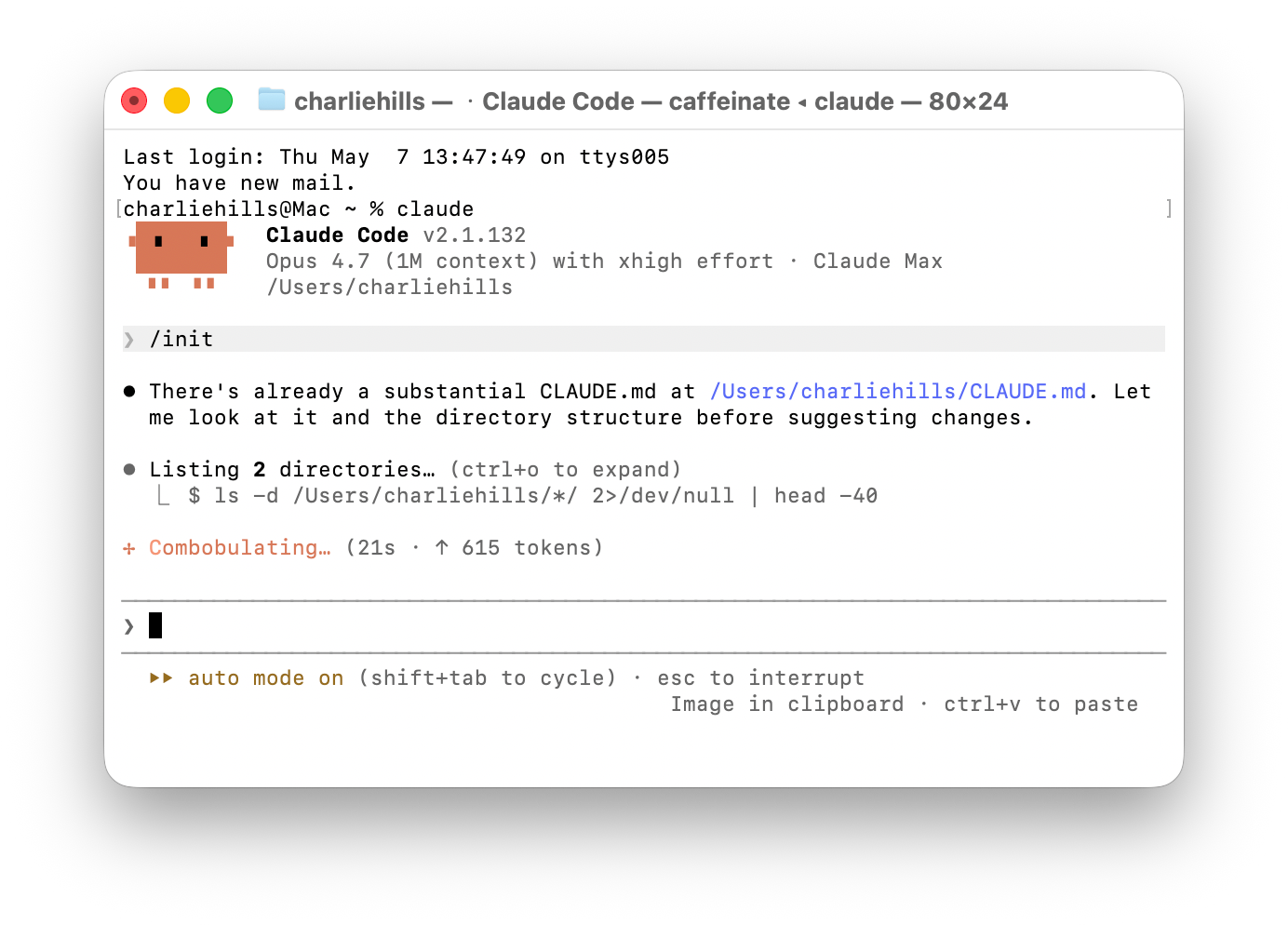
Run /init write the first version. The rest writes itself.
3. Plan Mode
This is what stopped me being scared.
Look at Boris Cherny’s (the engineer who built Claude Code) own CLAUDE.md file, the very first rule under “Workflow Orchestration” was “enter plan mode for any non-trivial task”. I have built this exact rule into every Claude Code workflow I run.
If you just say “go” without a plan, it might do something you did not intend. Like delete a file. Or rewrite something you did not want rewritten.
Plan Mode shows you exactly what Claude will do before it does it.
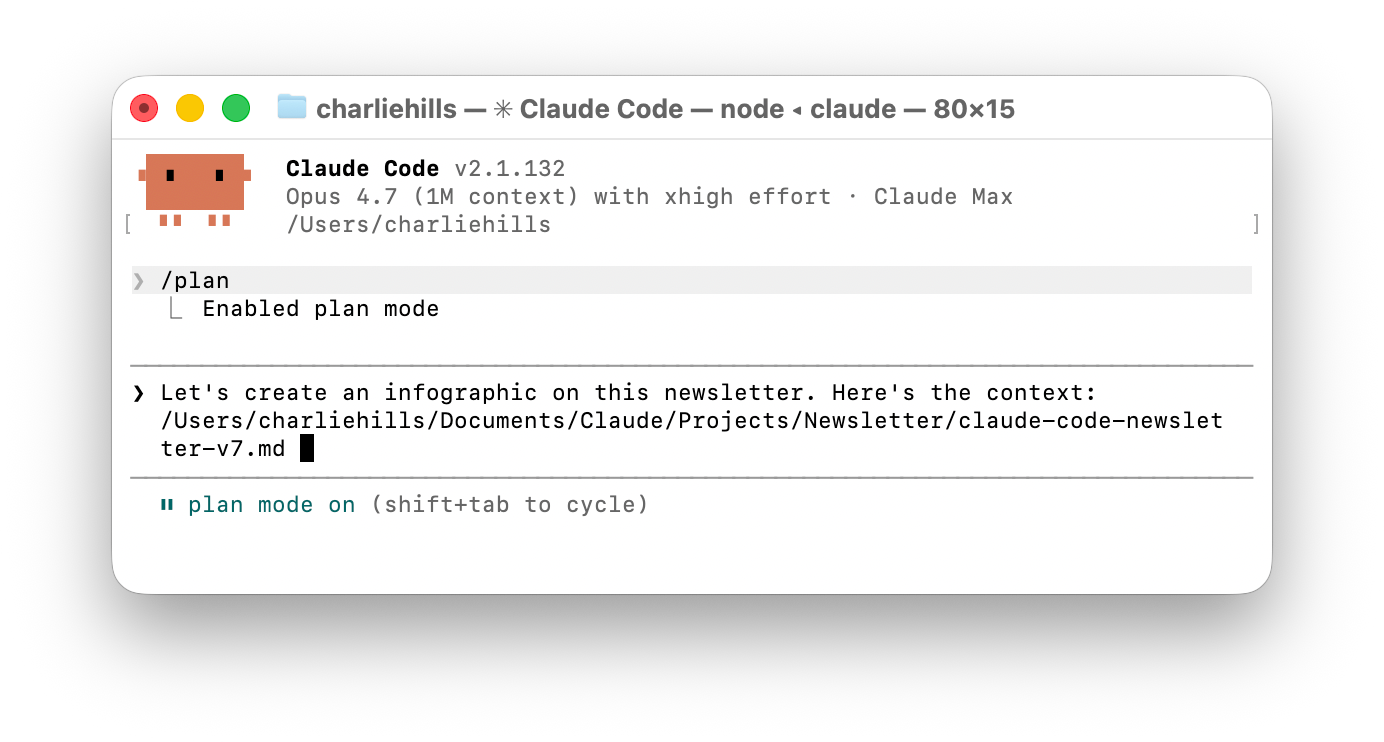
You read the plan. You approve. Then Claude acts.
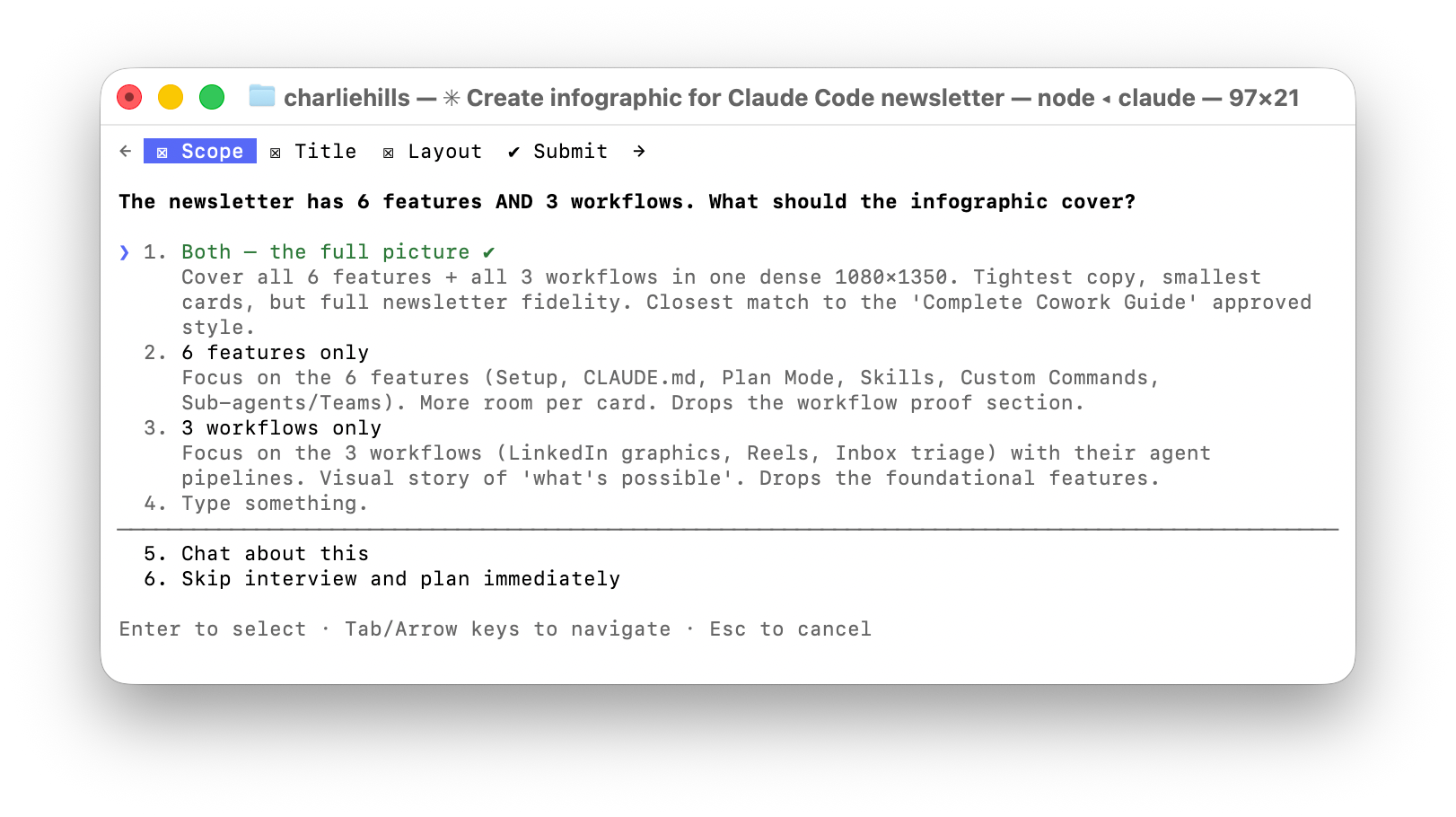
If the plan is wrong, you tell Claude what to fix. It rewrites the plan. You loop until it is right. Activate it by typing /plan, or hit Shift+Tab to toggle it mid-session.
There is a second reason: it saves your usage credits. A failed run costs more tokens than 10 minutes of planning. If you are using Claude Code seriously, you will hit your usage limits fast unless you plan first.
4. Skills
Skills are how Claude becomes your specific team.
A skill is a folder with instructions. Same idea in Chat, Cowork, and Code. But Code is where it gets spicy, because Claude Code can hit APIs the others cannot.
The Gemini API is my favourite. Gemini is multi-modal where Claude is not. I feed it an Instagram Reel or a YouTube video and pair it with Apify for scraping, you have a content-analysis machine running inside your terminal.
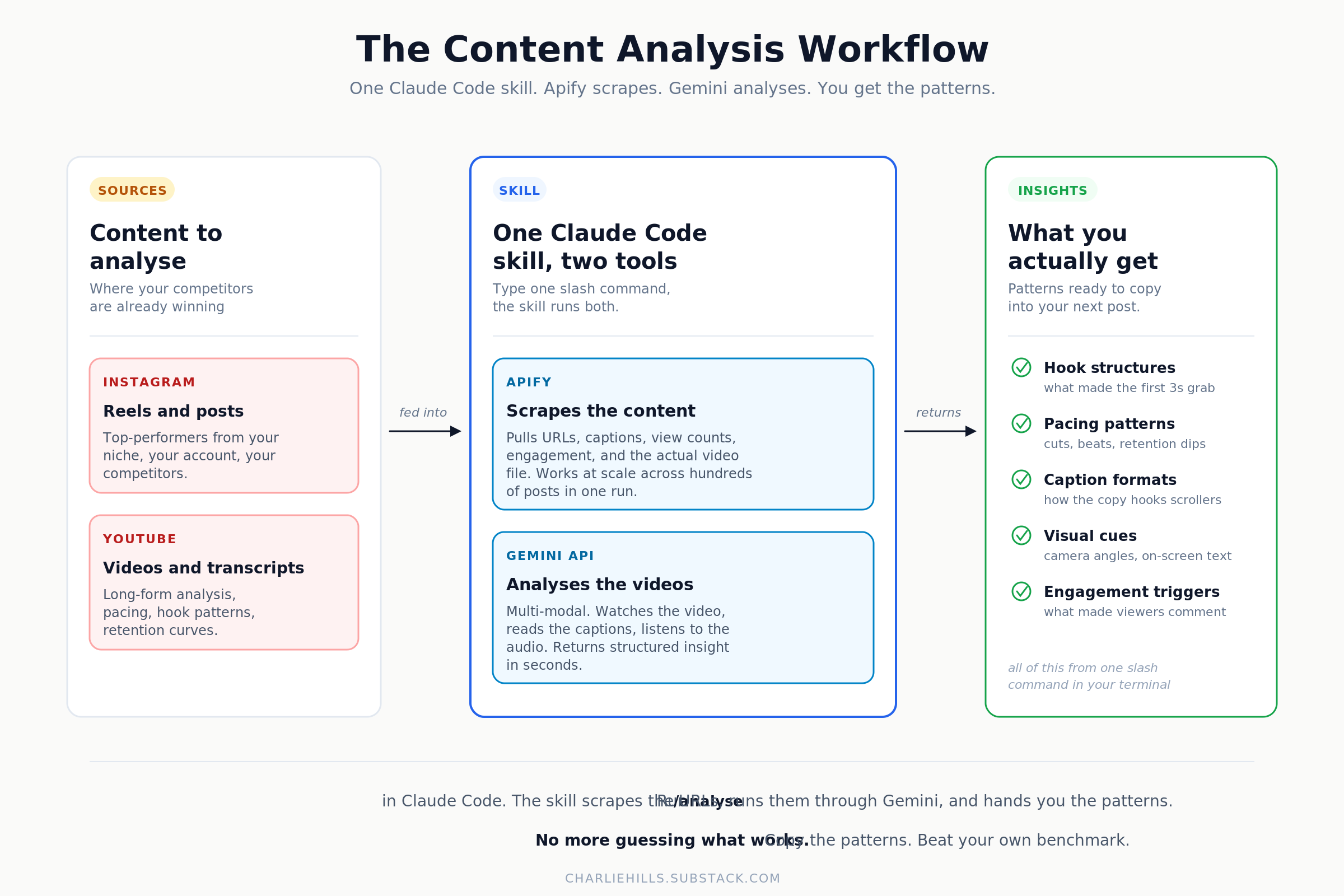
Paste your Gemini key into Claude Code and Claude becomes a cyborg LLM.
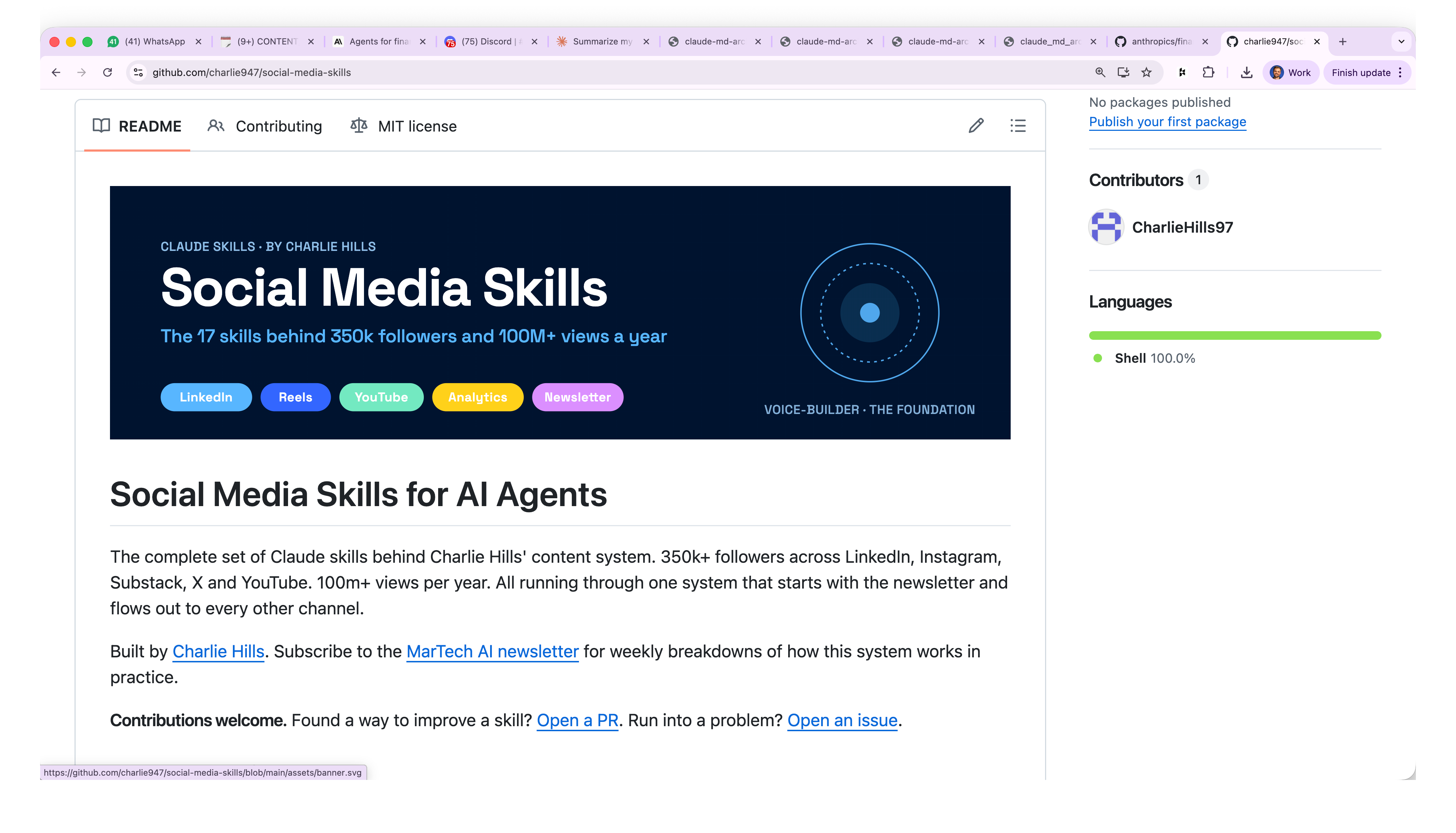
Last week I gave away a load of my Claude skill for free.
Drop them into Claude Code, Cowork, Chat, or any interface that supports skills. Writing, design, video, plus a few that would bore you.
Grab the skills library → https://github.com/charlie947/social-media-skills
5. Custom Commands
Most of the time in Claude Code, you just type. “Help me do something.” Claude reads CLAUDE.md, picks the right skill, and goes.
But there is a layer above that. Custom slash commands.
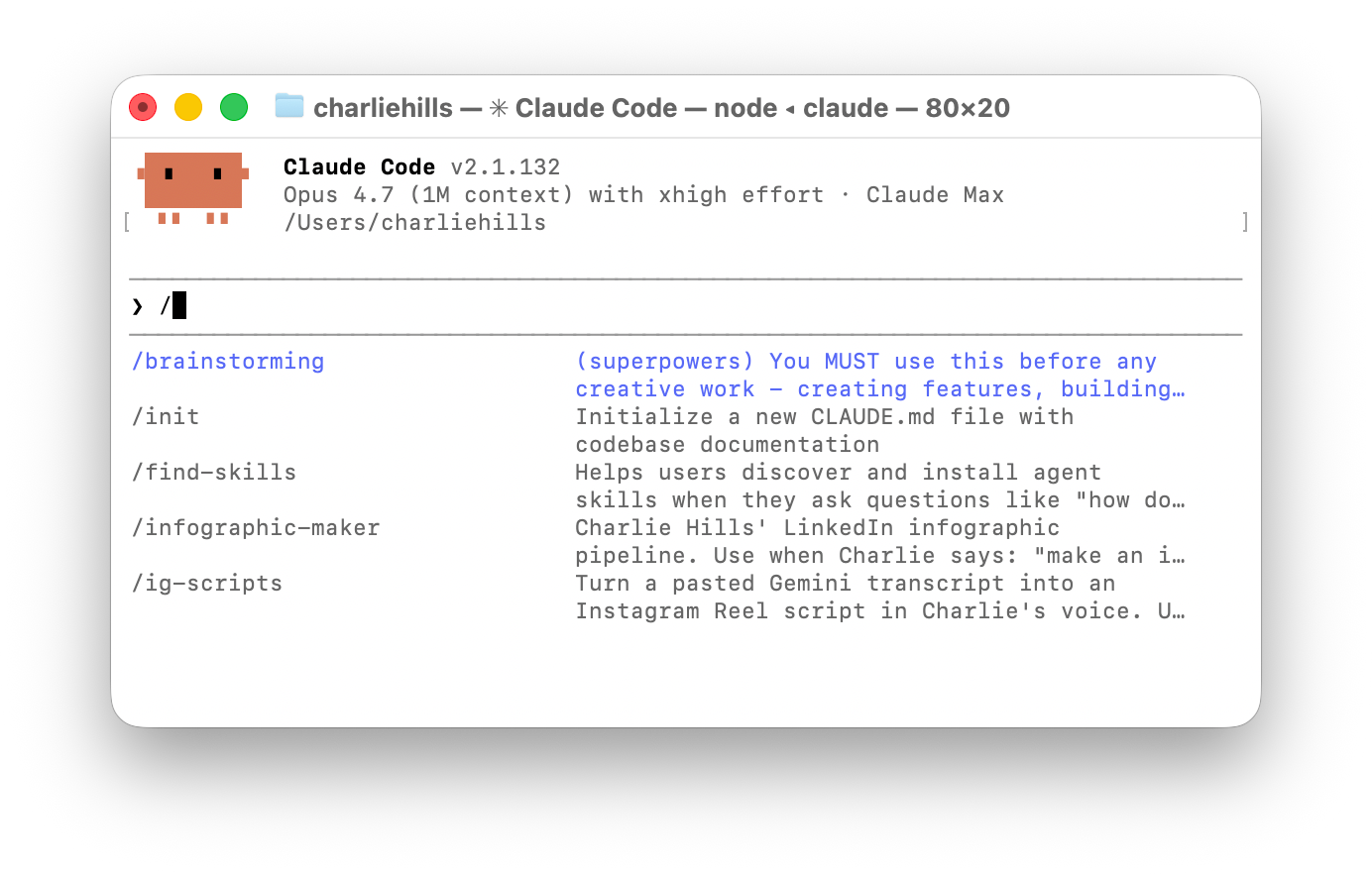
Claude Code already ships with hundreds of built-in slash commands. Session tools, task tools, code review, init, bug reports, etc. You did not have to build any of these.
They are sitting there waiting:
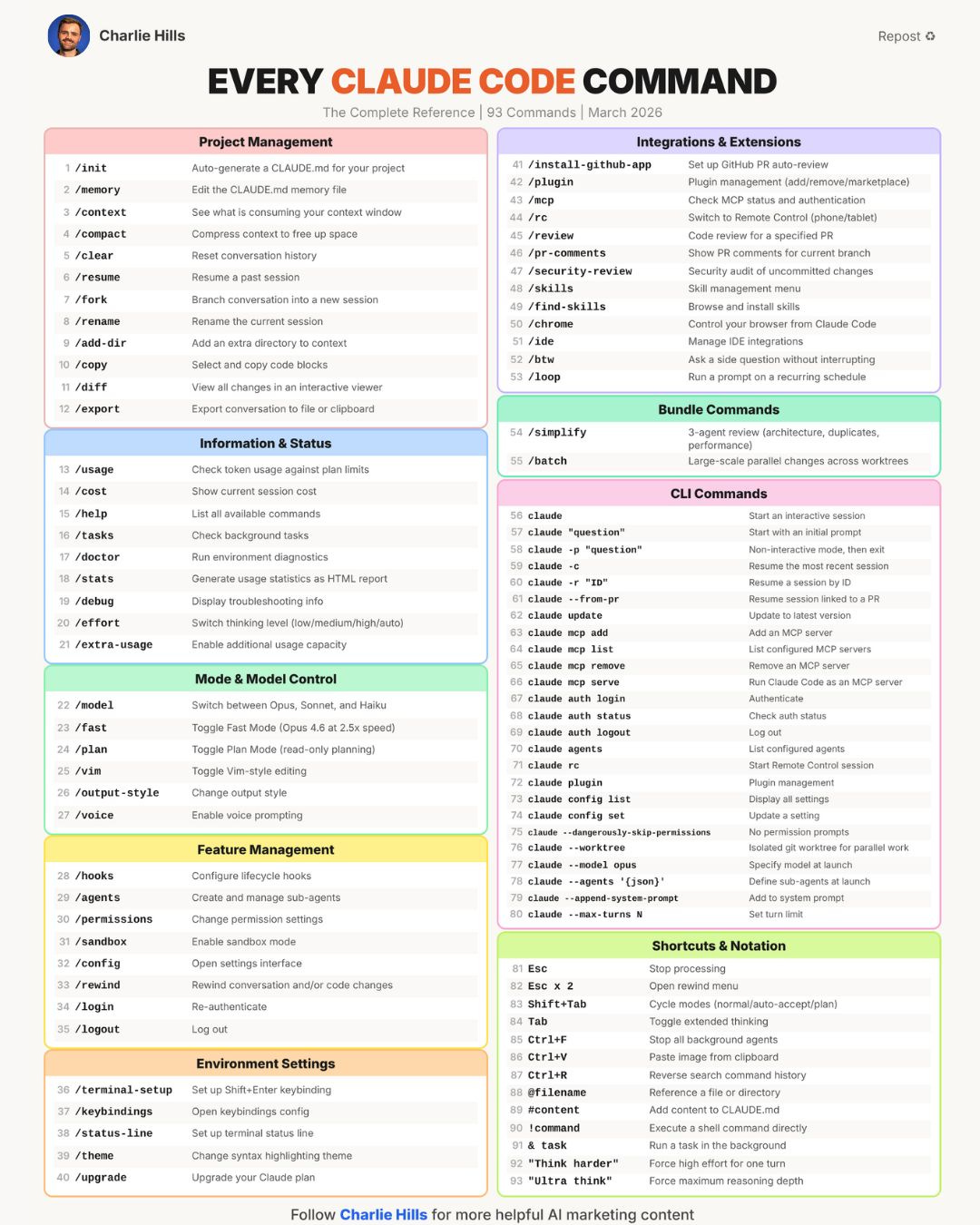
Type / and have a scroll. There is probably already a command for the thing you were about to write a 200-word prompt for.
But where it gets spicy: you can add your own.
A custom command is one markdown file saved to ~/.claude/commands/. It shows up in the same menu, alongside the built-ins, ready to fire.
To create your own, do not write the file by hand. Build the workflow with Claude first. When it works end to end, just say: “save this as a custom command we can execute.” Claude writes the file, names the command, wires it up.
6. Sub-agents and Agent Teams
This is the feature that made Claude Code feel like a team.
A sub-agent is a specialist Claude that runs in its own context.
You hand it a task, it goes off and does it, then reports back to the main session.
I use sub-agents for research, scraping, drafting, and review - anything where I want focus without polluting the main conversation.
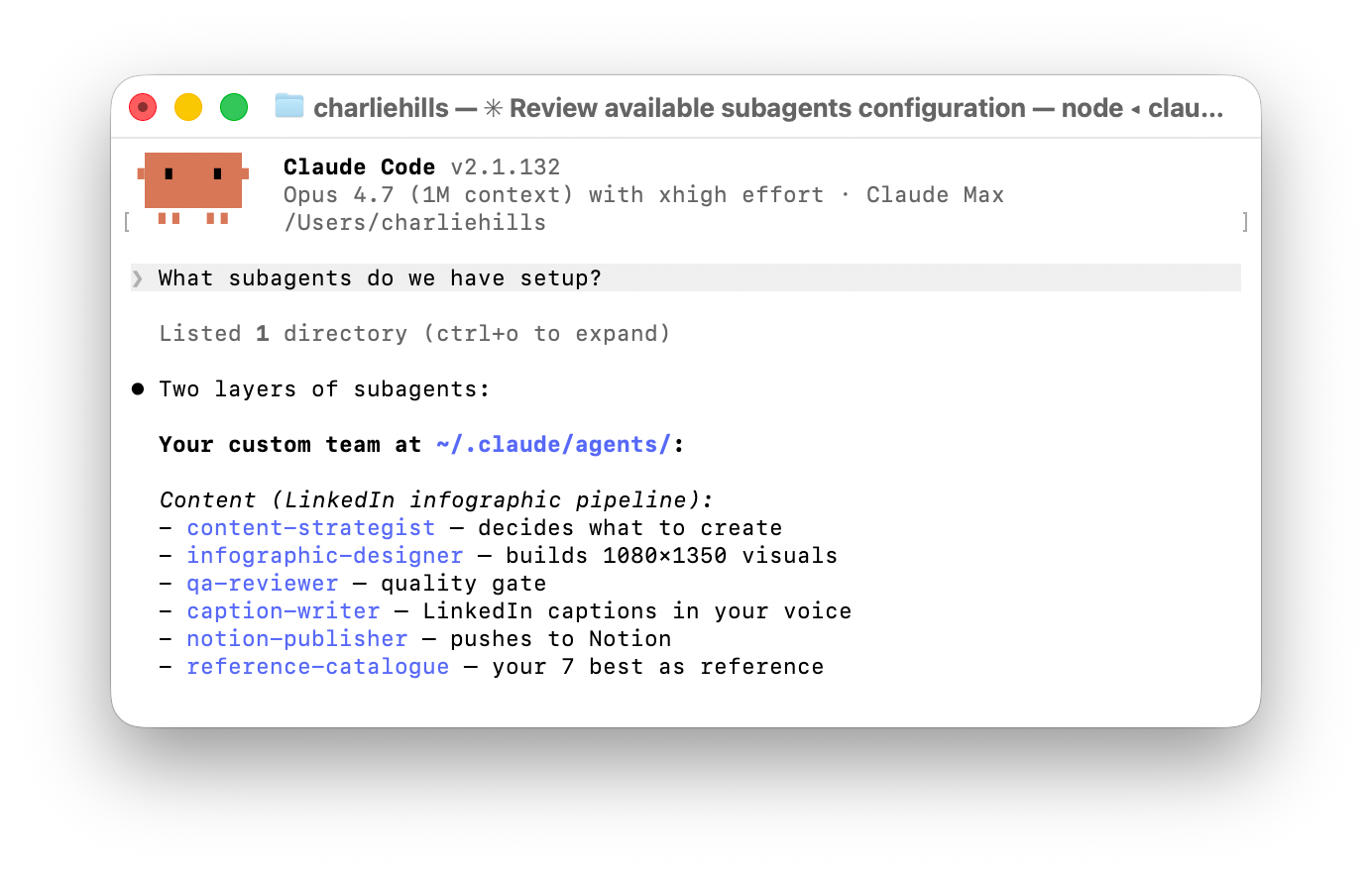
An agent team is a full production pipeline. Multiple agents, working in parallel, each with their own role and their own context, all coordinating through a shared task list.
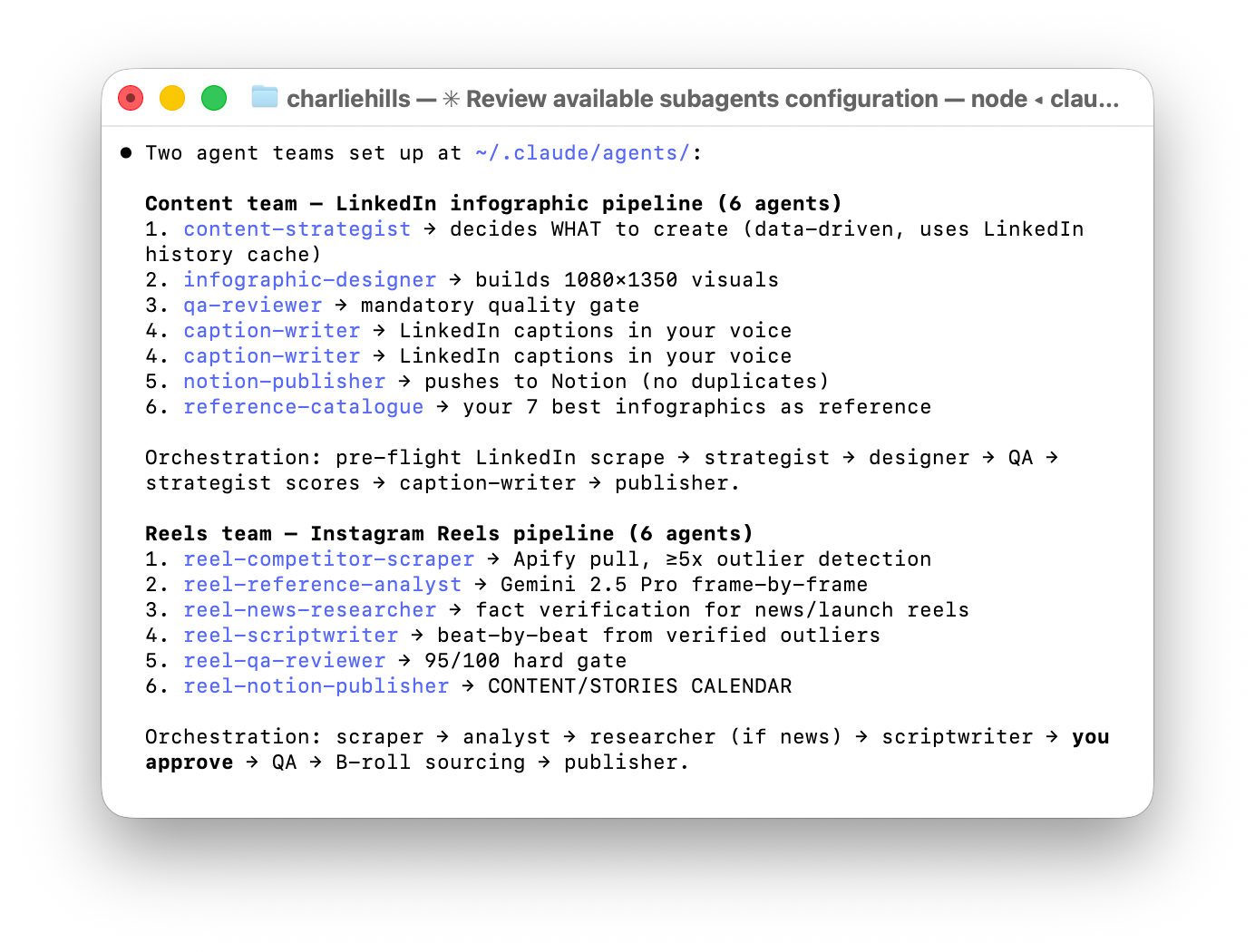
I built these in 6 weeks. I described what I wanted in plain English, like I was briefing a clever new hire.
I knew the features existed, had an idea of what I wanted to build, and told Claude to do the rest.
It’s that simple.
12 weeks ago, I was scared to open the terminal.
I am not a developer. I am not overly technical.
But the gap between “I cannot do that” and “I run my content business on this” was weeks of typing what I wanted into a text box.
If you have been avoiding Claude Code because it looks technical, this is the email that says you can stop.
Have a play with it :)
Hit reply and tell me where you’re at with Claude Code. Beginner, avoiding it, or already running workflows? I read every response.
Stay curious, stay human and keep creating.
— Charlie
Ways we can work together
Become a paid subscriber: Get full access to every past issue of MarTech AI and support future ones.
Try Vislo AI: Design on-brand social media visuals without the technical setup. Join the public beta.
AI Second Brain for LinkedIn: Built on my methodology and frameworks. Learns your voice and builds your content strategy. Waitlist open.